Tax & Annual accounts
Closing entries
Closing entries is located under both Period closing and Year-end closing.
If a reconciliation difference should occur in Reconciliation BS - Overview or in an appendix, you can create a closing entry by clicking on the scale icon.
When you create a closing entry from an account in the overview or from a main appendix, a name and an offset account will be suggested, based on your previous entries.
For these reconciliation accounts, the following offset accounts are proposed:
| Reconciliation account | Offset account |
|---|---|
| 2513 | 5191 |
| 2920 | 7090 |
| 2910 | 7010 |
| 1400 | 4900 |
| 2514 | 7530 |
| 2515 | 7550 |
| 1720 | 5615 |
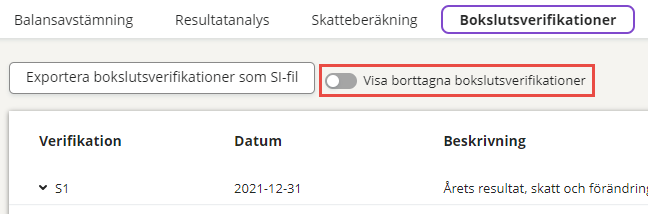
You can also go to Closing entries and create the closing entry there. Here, a list of all closing entries that have been created is displayed. You can expand each closing entry to view the details. Any deleted closing entries will be hidden by default. You can display them by using the Show deleted closing entries toggle.
- When dimensions such as cost centres and projects exist in your accounting, you can use them when creating the closing entry. Dimensions can be connected to any account.
-
A closing entry must be saved with a date in the active period. If you are in a year-end period, it must be a date in the last month.
-
After saving it for the first time, you can attach supporting documents to your financial statements in Excel, Word, pdf or image format. Each entry can hold as many as 12 files and you can upload files of up to 10 MB.
Any closing entries that you create in Tax & Annual accounts must also be transferred to your accounting. If you don´t want to transfer them, you have to set them as Not applicable for transfer. This setting is available for all manually created closing entries and for some automatically generated closing entires (see below) and only in the year-end period. In that case, they will only affect the balances in Tax & Annual accounts. The documents are of course transferred to the accounting when you sync.
System journal entries
In addition to the closing entries you create yourself, there are some entries that are generated automatically by the system, so-called S-vouchers.
- A closing entry for change of additional depreciation of machinery and equipment is automatically created, based on the choice you have made for provision or resolution in Year-end closing - Calculate tax - - Additional depreciation of machinery/equipment.
- A closing entry for this year's result, income tax and change of tax allocation reserve is automatically created, based on your choice for allocation or reversal in Year-end closing - Calculate tax - Profit/loss planning.
- If the appendix Summary of the year's tax liability/claim (which is automatically generated after making a choice for allocation or reversal in Year-end closing - Calculate tax - - Profit/loss planning) is connected to one or several sub-appendices or accounts for tax liabilities, a closing entry which transfers the amounts from the sub-accounts to the selected main account for tax liability is automatically generated. The option to create the closing entry is enabled by default but can be turned off by de-selecting the Create closing entry automatically toggle on the appendix Summary of the year's tax liability/claim.
- The closing entry Rebooking of balances on deposit and withdrawal accounts to the account for Equity (sole proprietorships) is automatically created when you add the Equity specification for sole proprietorships appendix. This one empties the accounts mapped to the reference accounts 2011-2018 and transfers their balances to the selected equity account. These rebookings are displayed as own rows on the main appendix for the accounts in question. This closing entry is possible to mark for Not applicable for transfer.
- The closing entry Booking of profit for the year (sole proprietorships) is automatically created when you add the Equity specification for sole proprietorships appendix. This one registers the profit for the year, by retrieving the amount for Calculated profit/loss in the income statement and deducting the recorded amounts (if any) on accounts mapped to reference account 8999. This closing entry is possible to mark for Not applicable for transfer.
- When using the data sources Manual entry or SIE1 import, a closing entry named Automatic system voucher based on manually entered balances will be automatically created and will include the changes for each account.
If you want to print all closing entries, you do this via Report Center.
To delete the system-generated closing entries for the profit for the year, tax and period allocation reserve, go to - Calculate tax - Profit/loss planning and deselect the profit planning choice that has been made.
If you import accounting data into Tax & Annual accounts again, you will be asked if you want to exclude the closing entries that you have created in Tax & Annual accounts from the account balances. They will then get the Transferred-Excluded status.
Entries with the status Transferred-Excluded are not included in the balances in Tax & Annual accounts, since we assume that these entries have been recorded in your accounting and are included in the new import.
Only closing with the statuses Not transferred and Transferred (and Not applicable for transfer, if you are working in the year-end period) affect the balances in Tax & Annual accounts.
 Exporti closing entries
Export as SI file - when you have SIE file as data source
When you have SIE file as data source, the button Export closing entries as a SI file appears under Closing entries. Once clicked, you will create a SI export file containing all closing entries with the status Not transferred. This file can be used to transfer the closing entries to other ERPs that support the import of this file type.
- If there are entries with the status Not transferred when you are locking a period, you will be asked whether you want to export them as an SI file.
- When the export is done, the closing entries will receive the status Transferred.
Export closing entries to Bookkeeping & Invoicing - when you have Bookkeeping & Invoicing as data source
When you have Bookkeeping & Invoicing as data source, the button Export closing entries to Bookkeeping & Invoicing is displayed under Closing entries. When you click on it, all closing entries with the status Not transferred will be transferred to Bookkeeping & Invoicing.
- If there are entries with the status Not transferred when you are locking a period, the system will ask you whether you'd like to export them to the accounting.
- When you have connected dimensions to a closing entry in Tax & Annual accounts, they will be updated in the accounting. This is provided that there are dimensions posted there.
- Closing entries are exported to the accounting and can be saved in a separate voucher series. You do this setting in under Settings - Company settings - Accounting settings - Journal series - Closing entries in your accounting.
- When the export is done, the closing entries will receive the status Transferred.
Export closing entries to Fortnox - when you have Fortnox as data source
When you have Fortnox as data source, the button Export closing entries to Fortnox is displayed under Closing entries. When you click on it, you log in to Fortnox, select the company and choose which verification series in Fortnox should be used for the closing verifications. When you click on it, all closing entries with the status Not transferred will be transferred to Fortnox.
- You need to have activated the API integration with Fortnox for each client company to which you want to export closing entries.
- When the export is made, we retrieve the pre-selected verification series for financial statement verifications from Fortnox via the API.
- If there are verifications with the status Not transferred when you lock a period, you will be asked if you want to export them to Fortnox.
- When the export is done, the closing entries will receive the status Transferred.
Create closing entries solely for Tax & Annual accounts
In the year-end period, it is possible to create entries that are not relevant to transfer back to your accounting, by setting them as Not applicable for transfer. These entries will not be included in an export, which means that they will only affect balances in Tax & Annual accounts. This option is only available for entries with the status Not transferred.
Related topics
Equity specification for sole proprietorships
Tax depreciation for machinery and equipment (only limited companies)
Searchword : System voucher, closing voucher, year-end voucher